
LinkedIn Studio Capabilities With Analytics Data Proof

Updated: Aug 13
Diksha, Ajay, and I have been working hard to build a cutting-edge productivity tool that helps you grow your personal LinkedIn profile.
From planning, creating, publishing, analysis, engagement, to remarketing — LinkedIn Studio helps you manage the entire LinkedIn content lifecycle from a single dashboard.
Today I'm going to share 10 amazing features of LinkedIn Studio and how I used it to grow my LinkedIn from a fresh zero start — with real analytics proof from the dashboard.
We only built this LinkedIn Studio recently, and we've been testing it for the past 1 month.
So this is not a theory post. This is a builder’s first-month test.
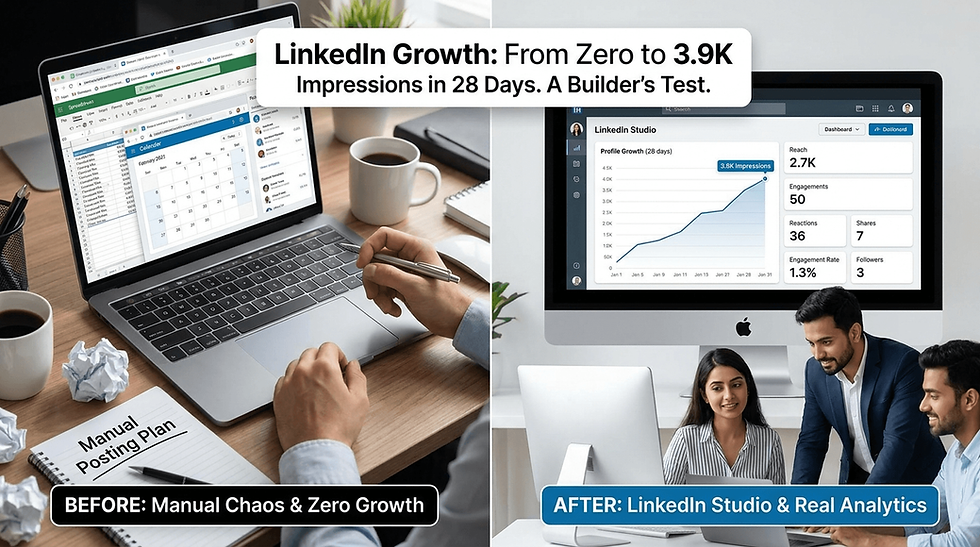
Table of contents
LinkedIn Studio Dashboard
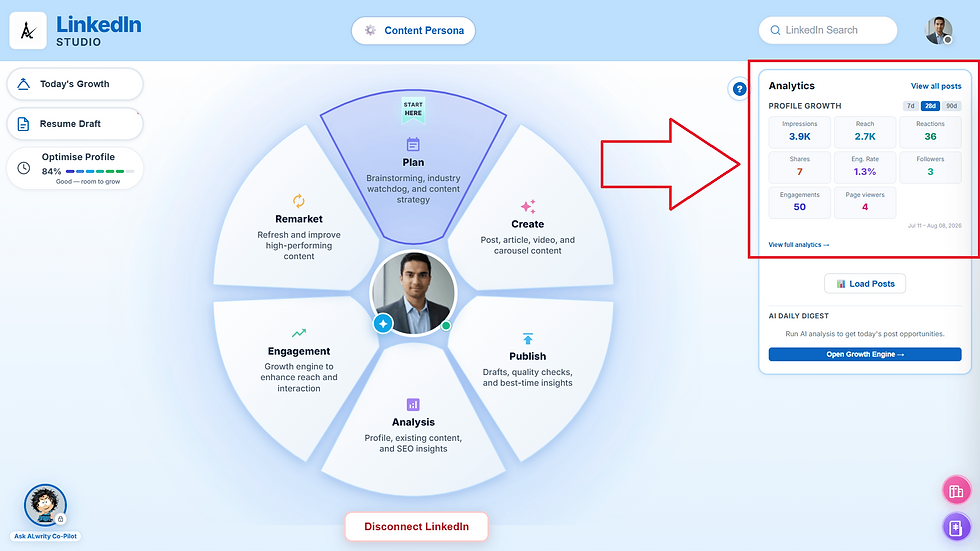
Look at the right side of the LinkedIn Studio dashboard. You don’t need to export reports or open five tabs. Your growth numbers sit right there under Analytics → Profile Growth.
Here’s my real 28-day snapshot:
Metric | Result (28 days) |
Impressions | 3.9K |
Reach | 2.7K |
Total Engagements | 50 |
Reactions | 36 |
Shares | 7 |
Engagement Rate | 1.3% |
Followers | 3 |
Page Viewers | 4 |
Comments | 19 |
I started from a fresh LinkedIn account. In about one month of testing, those numbers came from organic content — not ads.
If you could see your LinkedIn numbers this clearly every day, what would you improve first — content, profile, or comments? Tell me in the comments. I read every reply.
What is LinkedIn Studio?
LinkedIn Studio is one of the features inside ALwrity. It helps you become more productive on LinkedIn without juggling many tools.
From one dashboard, you manage your full content lifecycle:
Plan → Create → Publish → Analyze → Engage → Remarket
As you can see in the LinkedIn Studio dashboard image above, the wheel in the center makes the path simple. You start at Plan, then move around the cycle.
A few important things you should know:
Content is backed by live research citations (Exa neural research data).
You can set a persona so every generated content flow reflects your brand voice.
You still review and correct every draft before you publish. You stay in control.
It’s multi-model, so you can work with posts, images, video scripts, and carousels from one place.
LinkedIn Studio helps you know what to post, write it faster, publish with confidence, measure results, engage people, and reuse what worked.

Why does LinkedIn Studio exist?
Most people don’t fail on LinkedIn because they lack ideas. They fail because the process is messy.
You open Notes for ideas. Google Docs for drafts.LinkedIn for posting.Another tab for comments. And you rarely check what actually worked.
That chaos kills consistency.
We built LinkedIn Studio to fix that.
One dashboard. One clear path. Less decision fatigue. Had to be fast, clear, and useful.
What’s the biggest LinkedIn blocker for you right now — time, ideas, writing, or consistency?
Drop it below. Your answer may help someone else too.
Top 10 features from planning to remarketing
1. One simple dashboard for the full LinkedIn lifecycle
The center wheel shows everything at once: Plan, Create, Publish, Analysis, Engagement, Remarket.
You always know the next step. No guessing. No tool-hopping.
2. Plan: Start here with brainstorming and strategy
The dashboard even marks Plan as “Start Here.”
Inside Plan, you brainstorm topics, watch industry signals, and shape content direction before writing.

How I used it in 30–60 minutes/day: I spent the first few minutes deciding what to post. That saved me from staring at a blank screen.
3. Create: Turn ideas into posts and articles faster
Create helps you draft LinkedIn posts and longer articles.
You can also explore video scripts and carousels as the suite grows.
4. Publish: Quality checks before you hit post
Publish helps you review drafts, run quality checks, and publish with more confidence.

If the first lines felt weak, I fixed them before posting. On LinkedIn, the first lines decide whether people click “see more.”
5. Analysis: See your growth on the right side of the dashboard
This is my favorite part for busy people.
On the right side of LinkedIn Studio, Analytics shows Profile Growth instantly:
Impressions
Reach
Reactions
Shares
Engagement rate
Followers
Total engagements
I didn’t need a spreadsheet. I looked at the panel, learned, and moved on.
My 28-day proof: 3.9K impressions, 2.7K reach, 50 total engagements.
6. Optimise Profile: Make visitors stay
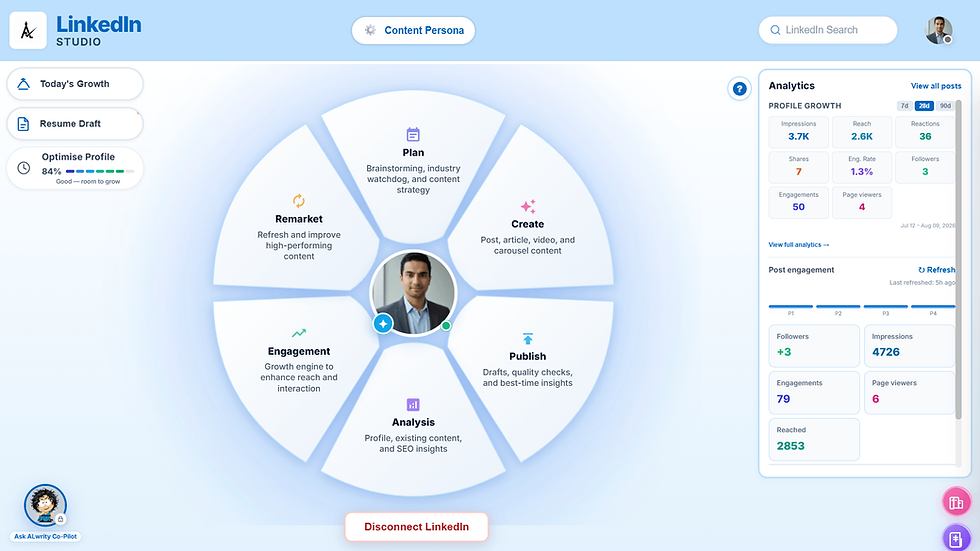
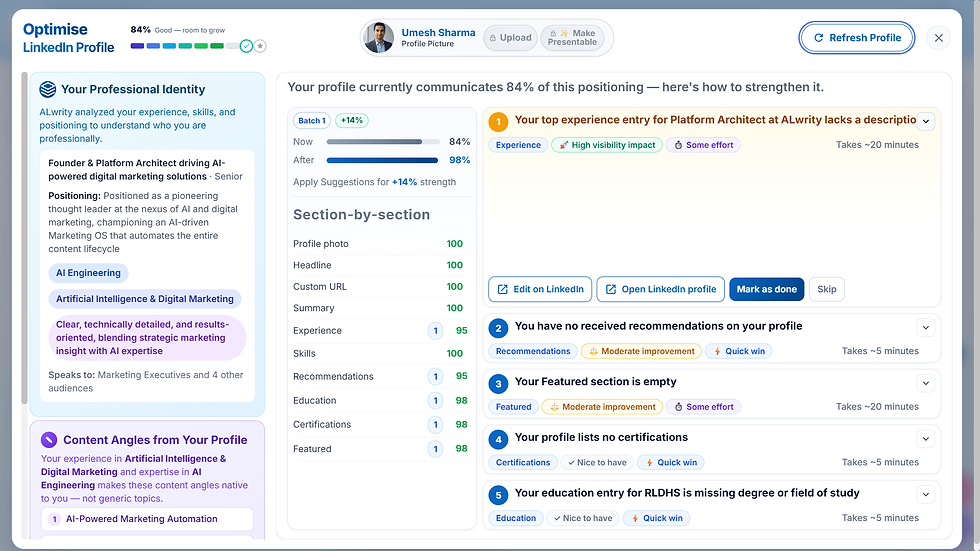
On my dashboard, profile strength showed 84% — Good, room to grow.
A clear profile turns views into follows and trust.
I improved my profile early, then focused on content. People who found my posts could understand me quickly.
7. Engagement tools: Grow through comments and conversations
Engagement is the growth engine for reach and interaction.
Comments are free distribution. When you reply, more people can discover your post.

8. Grow Network: Connect with the right people
Growing LinkedIn is not only about posting. It’s also meeting the right people.
Grow Network helps you expand with relevant connections instead of random spam.

9. Remarket: Refresh what already worked
Remarket helps you reuse and improve high-performing content.
Why invent a brand-new idea every day when one good idea can become three posts?
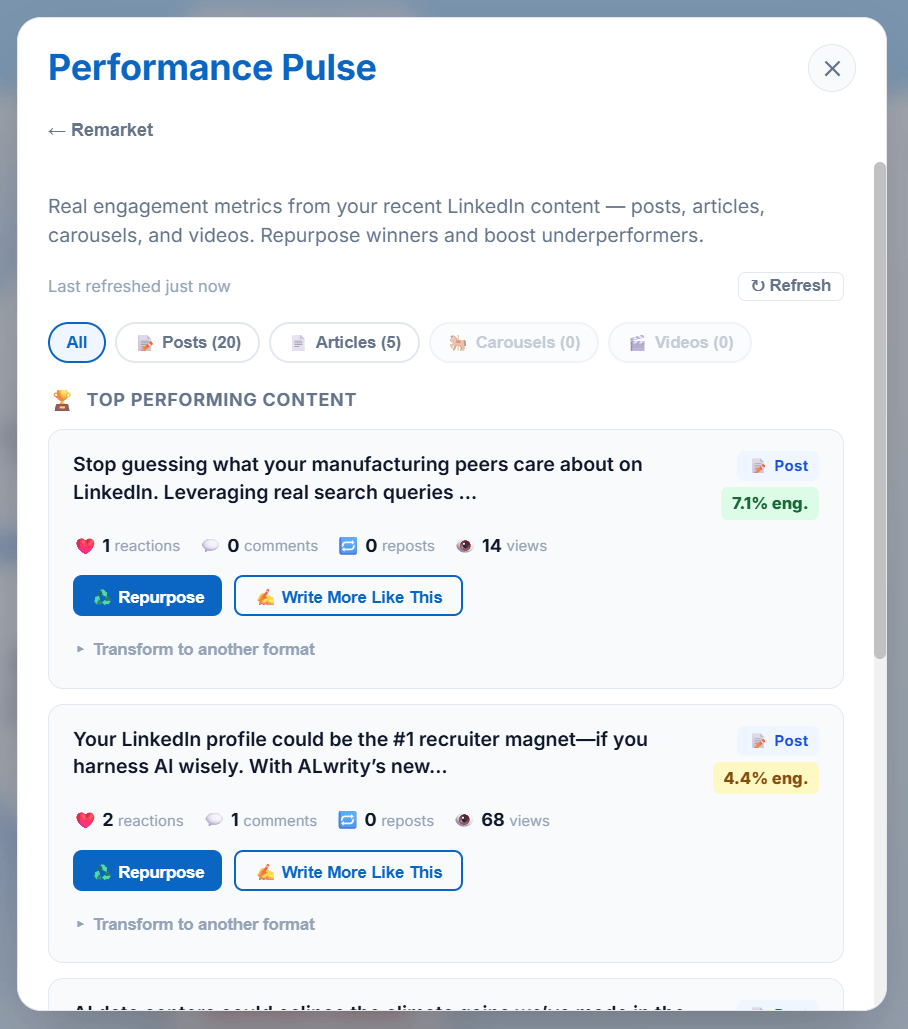
When something got traction, I remixed it later instead of starting from zero.
10. AI Daily Digest + Growth Engine
On the right side, under Analytics, you also get AI Daily Digest.
It helps you find today’s post opportunities and open the Growth Engine when you want guided next actions.

For a busy builder, this matters. You open Studio, see numbers, see next actions, and execute in under an hour.
How I grew LinkedIn traffic organically in 1 month from a fresh start
My starting point
Fresh LinkedIn account
Near-zero audience
No ads
Only 30–60 minutes a day
Product in alpha testing for about 1 month
My real dashboard results (28 days)
3.9K impressions
2.7K reach
50 total engagements
36 reactions
7 shares
1.3% engagement rate
That is organic LinkedIn traffic from a fresh start.
My simple daily routine (30–60 minutes)
1 - 10 minutes | Plan | Pick one topic. Keep it specific |
10 - 35 minutes | Generate + Review + Publish | Generate a clear post. Quality-check it. Publish |
35 - 50 minutes | Engage | Reply to comments, connect with relevant people. |
50 - 60 minutes | Check Analytics | Look at the ride-side Profile Growth Panel. Learn what worked. |
Repeat winners.
That’s it. No all-day LinkedIn grind.
You don’t need more hours. You need a cleaner system. LinkedIn Studio gave me that system while we were still building and testing it.
FAQs
Is LinkedIn Studio only for marketers?
No. I use it as a busy builder. If you can spend 30–60 minutes a day, you can use it.
Do I need to be technical?
No. The dashboard is visual. You follow the wheel: Plan, Create, Publish, Analyze, Engage, Remarket.
Where do I see my analytics?
Directly inside LinkedIn Studio, on the right-hand Analytics panel under Profile Growth. That’s where I tracked 3.9K impressions and 2.7K reach.
Did AI publish for me automatically?
No. Every piece of content still needs your review and correction before you hit publish. You stay in control.
Is the content researched?
Yes. Content can be backed by live research citations. You still edit it in your voice.
Can I create more than text posts?
Yes. LinkedIn Studio supports a multi-model workflow for posts and related formats like images, video scripts, and carousels.
Is this a finished product?
We’ve been building and testing LinkedIn Studio for about 1 month. These results are from real alpha testing, not a perfectly polished launch story.
Let’s talk in the comments
I want this to be useful, not just a feature list.
Reply with one of these:
What’s your biggest LinkedIn struggle right now?
How many minutes a day can you realistically spend on LinkedIn?
Do you want a Part 2 where I show my exact weekly posting routine inside LinkedIn Studio?
If you’re a busy founder, creator, or professional trying to grow on LinkedIn without living there — tell me where you’re stuck. I’ll reply.
Final takeaway
We built LinkedIn Studio. We’ve been testing it for 1 month. I used it only 30–60 minutes a day.
And from a fresh start, my dashboard showed:
3.9K impressions · 2.7K reach · 50 engagements in 28 days.
The tool didn’t replace me. It removed the chaos.
Plan. Create. Publish. Analyze. Engage. Remarket. Then check the right-side analytics and improve.
That’s how LinkedIn growth becomes simple — even when you’re busy building.


It's clear how the LinkedIn Studio simplifies the entire content lifecycle with "analytics data proof" visible on a single dashboard, making professional growth more manageable. This efficient approach to digital strategy is something I value. I am connected with Cellesim, and for those seeking a similarly straightforward way to handle mobile data while traveling, especially to Thailand, https://cellesim.com/de/esim-thailand offers relevant information.
Great Post. Kudos to you and Diksha. This is world's most advanced linkedin growth App.👍