
YouTube Channel Optimization Inside ALwrity YouTube Studio

Channel Optimization in ALwrity YouTube Studio shows you how your live channel looks today, scores the profile, and suggests clearer copy you can apply. You stay in Creator Studio. You choose what goes live.
This guide covers one of the amazing features of ALwrity YouTube Studio: Channel Optimization. It is written for everyday creators.

What is YouTube Channel Optimization?
Channel Optimization is the profile checkup inside ALwrity YouTube Studio. When you open it, ALwrity loads your connected channel: name, handle, banner, picture, description, and the rest of the public profile. It then scores that profile and lists what is already strong and what still needs work.
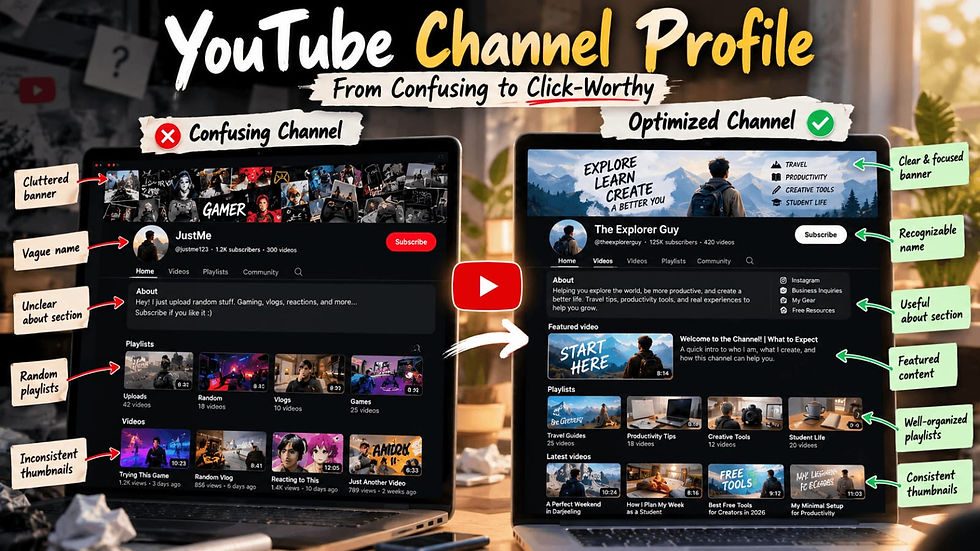
It is not a general tips article. For the broader profile checklist, see how to optimize your YouTube channel profile in 2026. This post is the in-studio tool: score, suggestions, and apply.
If you are new to the studio, start with our YouTube Studio overview.
What you need before you open it
A YouTube channel connected to ALwrity
Permission to view and update that channel
A few minutes to read the score and choose what to apply
If YouTube is not connected, connect it from Creator Studio first. Channel Optimization reads the live channel. It does not invent a profile from a blank page.

How to use Channel Optimization, step by step
Open YouTube Studio.
Open Channel Optimization.
Wait while ALwrity loads your channel and scores it.
Read the score line: Your channel currently scores X of Y.
Scan the section scores and the check cards. Failed and warning items sit at the top.
Click Optimize Your Channel Profile to get suggested copy where it helps.
Open a card. Read what it checks, why it matters, and what is on your channel now.
Edit the suggestion if you want, then Apply Suggestion for description or keywords, or copy it for fields you update on YouTube.
Skip a card if you are not changing that item yet.
Refresh to load the live channel again and see the new score.


What the score looks at
Each check is a short card. A card can pass, warn, or fail. Cards cover:
Channel name — length and whether the name feels like a trick headline
Custom handle — whether you have a clear @ handle
Description — a strong opening, enough detail, a link, contact email, hashtags, and no stuffed keywords
Keywords — enough keywords, and keywords that match the channel
Banner and picture — they are present and sized well
Channel trailer — a welcome video for new visitors
Language and country — so the right people find you
Privacy and made for kids — the channel is set the way you intend
You can expand a card to see the live text from your channel. The tool shows what is there today. It does not hide the current copy behind a long lesson.

Suggestions, apply, and what you still copy
Optimize Your Channel Profile prepares suggested text for the checks that need it. You can edit that text before anything goes live.
Apply Suggestion publishes description or keyword text to your YouTube channel from ALwrity. Keep those drafts within YouTube’s length limits.
Channel name and handle cannot be changed from this screen. Copy the suggestion, then update those in YouTube. Channel Optimization also has Copy suggestion and Open YouTube Studio when you need to finish a change there.
Skip hides a check for now if you are not ready to change it.
Nothing in Channel Optimization publishes a video. It only helps the channel profile. When a video is ready, you still send it from Creator Studio.

How it fits the rest of Creator Studio
A clear channel profile helps every video you make next. Use Channel Optimization when the channel is connected, then keep creating in the same studio.
Plan and produce in Creator Studio: from one idea to video-ready scenes
Keep the same host look: same face across every video scene
Make the click picture in Thumbnail Studio
Watch who is watching: your channel pulse
Reply in one place: YouTube comments dashboard
Simple habits that help
Run Channel Optimization after you connect YouTube, not after every single upload.
Fix failed items first. Warnings can wait.
Keep the description honest. The first lines should say who the channel is for.
Match keywords to the videos you actually publish.
Refresh after you apply, so the score matches the live channel.
Keep banner, picture, and thumbnails in the same family so visitors recognize you.
Frequently asked questions
What is Channel Optimization in ALwrity?
It is a YouTube Studio feature that loads your live channel, scores the profile, and offers suggested copy you can apply or copy.
Do I need to connect YouTube?
Yes. Channel Optimization reads the connected channel. Without a connection, there is no live profile to score.
Does Optimize change my channel right away?
No. Optimize prepares suggestions. Apply Suggestion publishes the description or keywords. You still choose each change.
Will this replace my videos or thumbnails?
No. Channel Optimization is for the channel profile only. Thumbnails are a separate Studio feature: the YouTube thumbnail generator in Creator Studio.
How is this different from the channel profile guide?
The channel profile guide explains what a strong profile looks like. This post is the Channel Optimization tool inside ALwrity YouTube Studio.
Final thought
Your channel page is the handshake after someone likes one video. Channel Optimization shows the handshake as it is, scores it, and lets you tighten the words without leaving Creator Studio. Open it, read the score, and only apply the lines you would stand behind. Optimize your YouTube channel today with ALwrity.


Comments