
The Complete Guide to Choosing the Right LinkedIn Profile Photo & Banner
Now that you've learned how to optimize your LinkedIn profile, it's time to focus on another important factor—your LinkedIn profile photo and banner. These are the first things recruiters notice and play a key role in creating a strong first impression. This guide, you'll learn how to choose the right profile photo and banner to make your profile look more professional, credible, and recruiter-friendly.

Table Of Content
Why Your LinkedIn Profile Photo & Banner Matter
Imagine meeting someone for the first time. Before they know your name, skills, or personality, they notice how you look. Your LinkedIn profile works the same way. Even if you've already optimized your LinkedIn profile, recruiters will first notice your profile photo. Your profile photo appears every time you send a connection request, comment on a post, or apply for a job.
Your Profile Photo and Banner create the first impression of your LinkedIn profile. A clear, professional photo and a well-designed banner help you look more trustworthy, confident, and serious about your career. They also encourage recruiters to spend more time exploring your profile instead of moving on to someone else's.
How to Choose the Perfect LinkedIn Profile Photo
Your profile photo is one of the first things recruiters notice. It helps you look professional, approachable, and confident. The best part? You don't need an expensive camera or a professional photoshoot. By following a few simple tips, you can choose a photo that creates a great first impression.

1. Use a High-Quality Photo
Use a recent photo that clearly shows your face. Avoid blurry or pixelated images, as they can make your profile look unprofessional. A sharp, high-quality photo helps recruiters recognize you and builds trust.
2. Make Sure Your Face Fills the Frame
Your face should cover about 60–70% of the photo. Recruiters should be able to recognize you easily without zooming in. Avoid photos taken from far away.
3. Be the Only Person in the Photo
Your profile photo should only include you. Group photos, cropped pictures, or photos with pets can distract viewers and make it unclear whose profile they're viewing.
4. Wear Professional or Industry-Appropriate Clothing
Choose clothes that match your profession. You don't always need to wear a suit, but your outfit should be clean, neat, and appropriate for the industry you work in or want to join.
5. Smile Naturally
A genuine smile makes you look friendly, confident, and approachable. You don't need to pose— just smile naturally and look at the camera.
6. Use Good Lighting and a Clean Background
Take your photo in natural light if possible, and choose a simple background that doesn't distract from you. A plain wall, office, or outdoor background works much better than a messy room or crowded place.
Recommended Dimensions And Size
Requirement | Recommendation |
Recommended Size | 400 × 400 pixels up-to 7680×4320 pixels |
Maximum Resolution | 7680 × 4320 pixels |
Maximum File Size | 8 MB |
Supported Formats | JPG, PNG |
7 LinkedIn Profile Photo Mistakes to Avoid
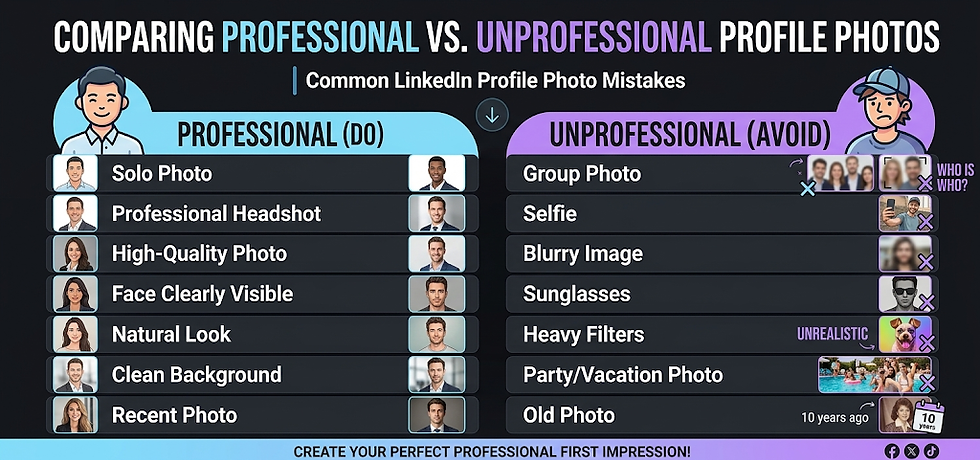
Your profile photo is often the first thing recruiters see. A good photo makes you look professional, while a bad one can create the wrong first impression. Here are seven common mistakes to avoid.
1. Using a Selfie
Selfies often look casual and may not create a professional impression. Instead, ask a friend to take your photo or use a tripod with a timer.
2. Uploading a Group Photo
Your profile photo should only include you. If recruiters have to guess who you are, they're more likely to move on.
3. Using a Blurry or Low-Quality Image
A blurry or pixelated photo can make your profile look outdated or unprofessional. Always use a clear, high-resolution image.
4. Wearing Sunglasses or Hiding Your Face
Your face should be clearly visible. Avoid sunglasses, hats, masks, or anything that hides your eyes or facial features.
5. Using Heavy Filters or Editing
Too many filters can make your photo look unnatural. Use a photo that looks like you in real life.
6. Cropping a Photo from a Party or Vacation
Cropping yourself out of a group picture usually leaves awkward framing and looks unprofessional. Use a proper headshot instead.
7. Using an Old Photo
Choose a recent photo that represents how you look today. This helps recruiters recognize you during interviews or networking events.
How to Choose the Best LinkedIn Banner
Your LinkedIn banner is the large image behind your profile photo. While your profile photo shows who you are, your banner tells people what you're interested in or what you do. A good banner makes your profile look complete and more professional.
1. Choose a Banner That Matches Your Profession
Your banner should match your career or the job you want. For example, a software developer can use a coding-themed banner, while a marketer can choose one related to marketing.
2. Keep It Clean and Simple
A simple banner looks better than one with too many colors, images, or text. Keep the focus on your personal brand.
3. Don't Add Too Much Text
If you include text, keep it short and easy to read. Too much text can make your banner look crowded.
4. Leave Space for Your Profile Photo
Your profile photo covers the bottom-left corner of the banner. Keep important text and logos away from that area.
5. Use a High-Quality Image
Always use a clear, high-resolution image so your banner looks sharp on all devices.
6. Make Sure It Looks Good on Mobile
After uploading your banner, check how it looks on both desktop and mobile. Sometimes images are cropped differently.
Recommended Banner Size
Requirement | Recommendation |
Dimensions | 1584 × 396 px |
Maximum File Size | 8 MB |
Supported Formats | JPG, PNG |
Tip: Preview your banner after uploading to make sure important text or graphics aren't hidden behind your profile photo.
LinkedIn Banner Ideas for Different Professions
Not sure what banner to use? The best LinkedIn banner is one that matches your profession or career goals. Here are some simple ideas for different professions.
1. Students
Use a clean banner with books, a laptop, your university, or a simple study-related background. Keep it neat and distraction-free.
2. Software Developers
Choose a banner with a coding setup, programming illustration, or a clean tech-themed background. Avoid cluttered screenshots full of code.
3. Digital Marketers
Use banners featuring SEO, analytics, social media, or digital marketing graphics. A simple marketing-themed design works best.
4. Designers
Show your creativity with a clean portfolio preview, design tools, or minimal artwork. Don't overcrowd the banner.
5. Job Seekers & Freshers
A simple gradient, workspace, or career-themed banner is enough. You can also add a short tagline like "Open to Opportunities" or "Building My Career."

Tip- If you're unsure what to choose, keep it simple. A clean, professional banner is always better than a busy one.
Best Free Tools to Create a Professional LinkedIn Banner
Creating a professional LinkedIn banner is easier than you might think. You don't need any design experience or expensive software. These free tools provide ready-made templates that you can customize in just a few minutes.
Once you've designed your banner, you can use our AI Blog Title Generator to create engaging titles for your LinkedIn posts or articles.
1. Canva
Canva offers hundreds of ready-made LinkedIn banner templates. Simply edit the text, colors, and images to match your personal brand.
2. Adobe Express
Adobe Express provides modern templates and easy-to-use editing tools, making it a great option for creating clean and professional banners.
3. Microsoft Designer
Microsoft Designer uses AI to generate banner designs based on your ideas. It's perfect if you want a professional-looking banner quickly.
4. Figma
Figma gives you complete control over your design. It's a great choice for designers, developers, or anyone who wants to create a custom banner from scratch.
Tip- Choose a simple template, customize it to match your profession, and export it in high quality before uploading it to LinkedIn.
Final Thoughts
Your LinkedIn profile photo and banner may seem like small details, but they often create the first impression recruiters have of you. A professional photo and a well-designed banner can make your profile look more trustworthy, complete, and memorable.
Now it's your turn! Update your LinkedIn profile photo and banner using the tips from this guide, and take one more step toward building a professional online presence.
Want to improve your writing before posting on LinkedIn? Use our AI Paragraph Rewriter to make your content clearer and more professional.
Continue Building Your LinkedIn Profile
Continue Building Your LinkedIn Profile with Us
Ready to strengthen your LinkedIn profile even further? Explore these guides:


Comments